Clients
Adding a client, what a client record holds, and how to find one later.
All help topics
A client is a person or a business you do work for. Everything else — requests, quotes, jobs, invoices, payments — hangs off a client, so it is the first record you create for new work.
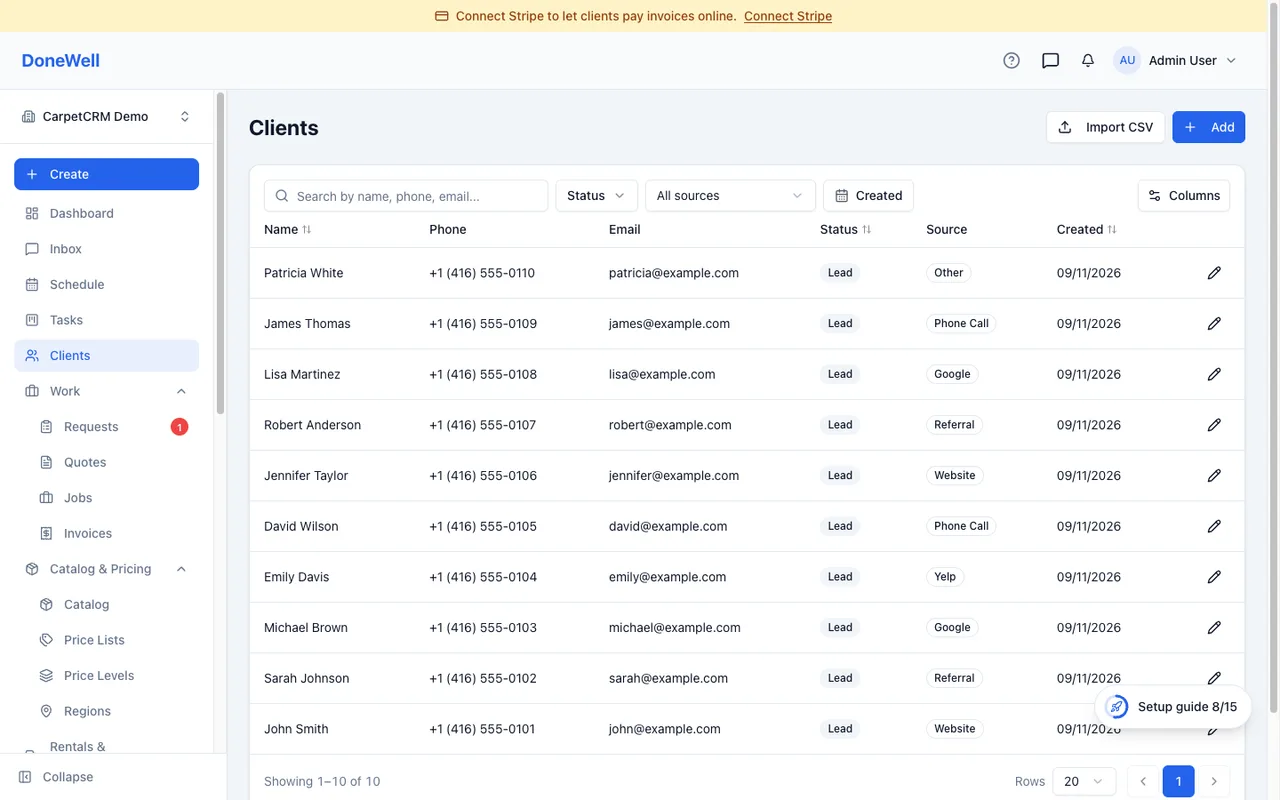
Adding a client
Open Clients and click New client. Name and at least one way to reach them (phone or email) is enough to start; you can fill in the rest later. If the client is a business, switch the record to Company and add the people you deal with as contacts.
The same form opens when you type a new name inside a quote or a job — you never have to leave the document to add the person it is for.
What the client page shows
The client page collects everything about that client in one place:
- Contact details — phones and emails, with one marked as primary. Messages and receipts go to the primary ones.
- Properties — the addresses you service for this client. A client can have several; each document picks one.
- History — every request, quote, job, invoice and payment for this client, newest first.
- Notes and tags — anything your team should know, and labels you use to group clients.
- Preferences — whether the client has agreed to automated text reminders and email updates. Documents you send by hand are not affected by this switch.
Each block has a pencil icon; edit it in place and save.
Client status
A new client starts as a Lead. They become Active on their own the first time one of these happens: a quote of theirs is approved (by you, on the quote page, or in the client portal), a visit for their job is put on the calendar with a date, or one of their invoices is sent or marked as sent. A visit saved for "schedule later" or a draft quote does not count yet.
This only ever moves a Lead forward — an Active or Inactive client is never changed automatically, and you can still set the status by hand at any time.
Finding a client
The search box on the Clients list matches names, phone numbers and emails. Filters narrow the list by tag or status.
Locked clients
When an import brings in more clients than your plan includes, everyone is still imported, but the clients over the limit are locked: the least active ones — longest since their last request, quote, job or invoice — are hidden from the Clients list, the search, the client pickers on quotes, jobs and invoices, and from campaigns. The Clients list shows an amber notice with how many are locked and a View plans link. Opening a locked client shows "This client is locked by your plan" instead of the client page. Their documents are still yours: a locked client's invoices, jobs and quotes open as usual and show their name, and a text or email from them still lands in your inbox on their thread. Locked clients count toward your plan's client limit, so adding a new client by hand while you are over the limit is refused with the number of locked clients named. Upgrading to a plan with a higher limit unlocks them, most active first, on its own — nothing to do on your side.
Importing a list
If you are moving from another system, Import on the Clients list opens the guided import (Settings → Data → Import data) with Clients already chosen. Upload the CSV or Excel export, match the columns once, and the import shows what it will create before anything is saved — see Importing your data for the steps.
What comes across from one row: the client's name, up to six phone numbers with their type (main, mobile, home, work, fax, other), two emails, the service address, a billing address if it differs, an extra contact person, tags and the lead source (created for you when your account has none of that name), the notes, and the client's status. When the same client appears on several rows with different addresses — as most exports list them — you get one client with all of those addresses, not several clients. Columns DoneWell has no field for are kept in the client's notes as a block headed with the file's name, so nothing from the old system is lost.
Missing something? Every guide is short on purpose — write to support@donewellapp.com and we will add it.