The calendar
Reading the schedule, moving visits, and finding time for new work.
All help topics
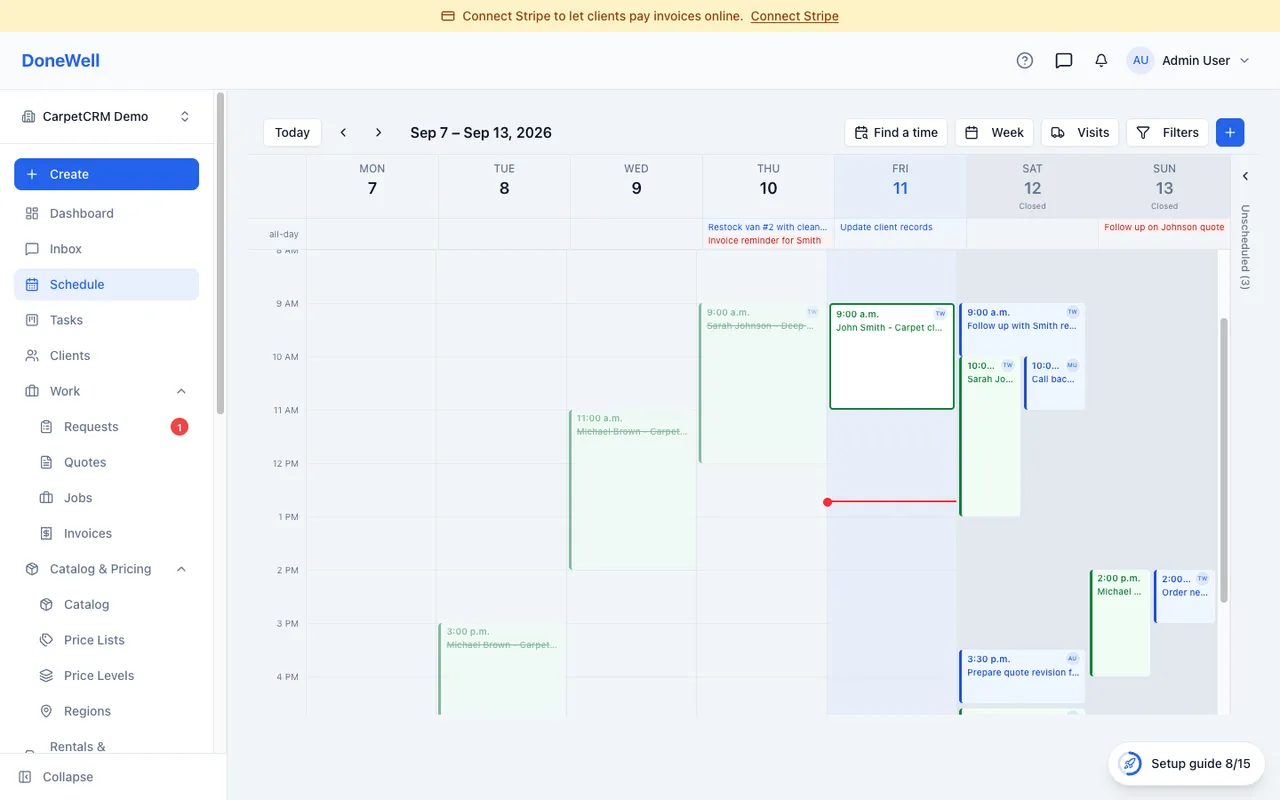
Schedule is the calendar of everything with a time: visits, assessments, appointments, tasks and reminders. It is where the day is planned and where the crew looks in the morning.
Views
Switch between Month, Week, Day, List and Map in the toolbar. Day view lays the team out side by side so you can see who is free; Map view plots the day's visits so you can order them by distance. The date picker and the arrows move through time; Today brings you back.
Filters
Filter by team member, crew or type of item. A filter you set stays until you clear it, so a dispatcher can keep the calendar on their own crews. Settings → Schedule sets the default view, working hours and which day starts the week.
Moving and creating
Drag a visit to another time or day to reschedule it; drag its edge to change the duration. Click an empty slot to create a visit, a task or a reminder right there. Colours follow the visit's status — scheduled, in progress, completed — so a glance shows how the day is going.
When you type a task title — here in New Task, or in a board column's quick-add — DoneWell looks for cards that already say the same thing and lists up to three under the field as Similar to T-…, including cards finished in the last two months. It is a hint, not a block: click a row to open that card instead, or keep typing and create yours anyway.
Appointments (salons)
In a salon & beauty workspace the calendar books appointments instead of jobs and requests. Click an empty slot (or the + button) and choose New Appointment: pick the client — or leave it as a walk-in — the date and start time, then one or more services, each with the staff member who performs it. Only people who perform that service are offered. The dialog shows when the appointment ends and, for a service with processing time such as colour, when the stylist is free during it.
An appointment appears on the calendar with its own colour. Open it to see the services, who does each one and the processing windows, and to move it along: Confirm, Start, Complete, or from More Actions mark a no-show, cancel or delete it. Drag it to another time or day to reschedule; the services and their staff stay the same.
Online booking. When online booking is switched on (Settings → Company → Online booking), clients book themselves at your booking page: they pick services, a stylist or "any available", and a free time. Times come from each stylist's working hours and the time they are actually busy, so a colour's processing time can be booked by someone else. The booking lands on the calendar straight away, confirmed if auto-confirm is on. The client receives a link to move or cancel it themselves, up to the number of hours before the appointment you set in the same card (24 by default); after that they are asked to call you.
Reminders. Under Settings → SMS Reminders, switch on Appointment reminders to remind clients automatically. By default a client gets an email two days before, a text the day before asking them to reply C to confirm or X to cancel, and a short text two hours before; you can change the times, add or remove reminders and pick your own text templates. A client who books later than a reminder's time does not get that reminder, and clients who opted out of texts or emails, or replied STOP, are skipped. When a client replies C the appointment becomes confirmed and shows "Client confirmed by text"; when they reply X it is canceled and the time is free again. Either way you get a notification, and the reply stays in the client's conversation. If the appointment is moved to another time, the reminders start over for the new time and the client is asked to confirm again.
Unscheduled work
The Unscheduled panel on the right lists jobs and requests that still need a time. Drag one onto the calendar to book it; the visit is created with the job's crew.
Conflicts
When two visits overlap for the same person the calendar warns you when you save, and both are outlined in red. It is a warning, not a block — two people from one crew on different jobs at the same time is normal. Appointments are checked the same way, against the time a staff member is actually working: booking a haircut into a colour's processing time is not a conflict.
Your own calendar app
Every team member can subscribe to their DoneWell schedule from Google Calendar, Apple Calendar or Outlook. The link is under Settings → Schedule; it shows only that person's visits and updates on its own.
Missing something? Every guide is short on purpose — write to support@donewellapp.com and we will add it.