First steps
What you see after signing in, and the order in which to set things up.
All help topics
DoneWell keeps the whole path of a job in one place: a client asks for work, you send a quote, the quote becomes a job on the calendar, the job becomes an invoice, and the invoice gets paid. Every screen you use day to day sits on that line.
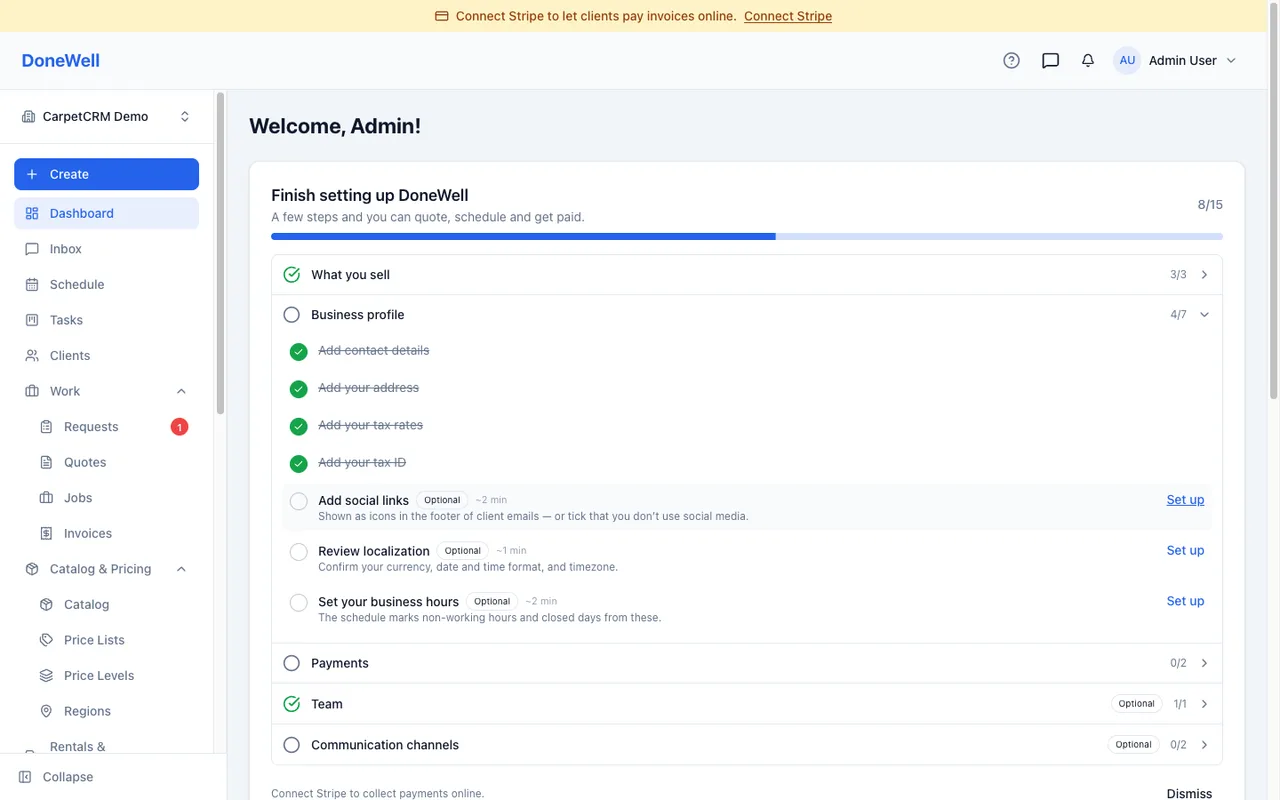
The dashboard
The dashboard is the home screen. It shows today's visits, requests that are waiting for a reply, quotes waiting for approval and invoices that are due — the things that need a decision from you now. The Today block at the top lists the day's visits and due tasks on a computer as well as on a phone; switch between Mine and All to see your own route or the whole team's (a role that sees only its own visits has no switch and always shows Mine). Unfinished visits from the past two weeks are listed under Overdue, and visits and tasks already finished today move to Done at the bottom, so Scheduled counts only what is still ahead. The period selector next to Customize sets the period the cards count over — This month (the default), Last month, Last 7, 30 or 90 days, This year or a custom range — and each card names its period under the number. To give one card its own period, open Customize, then the card's ⋯ menu → Period; a card on its own period shows a small calendar mark. Active Jobs and Accounts Receivable show the situation Now, Average Rating is for all time, and Revenue by Month always shows the current year. Each number card opens the list behind it, already filtered to the same records and the same period — Quotes Sent and Invoices Sent open their lists by sent date, Jobs Completed by completed date. On those lists the Date column filter shows and changes which date the range applies to. Sample records are never counted on the dashboard, so a list opened from it leaves them out too and says so above the table — Show all brings them back. Accounts Receivable opens the unpaid invoices with a Balance due column and its total, the same amount the card shows. Top Customers ranks clients by the money actually collected from them in the period — payments and tips, minus refunds — the same way Revenue counts. Quote Conversion is the share of the quotes sent to a customer in the period that became jobs; drafts nobody received are not counted. Revenue by Month prints each month's amount in short form ($2.3k) above its bar — point at a bar for the exact amount — and where the chart is too narrow for twelve amounts, it names the best month instead.
Set up in this order
- Company — name, address, phone, logo, time zone and currency. They appear on every document you send, so this comes first. Open Settings → Company.
- Taxes and fees — the tax rate your documents apply and any standing charges (a travel fee, a minimum charge). Settings → Taxes and Settings → Fees.
- Catalog — the services and products you sell, with their prices, so a quote is a few clicks instead of typing. Products.
- Team — invite the people who will use DoneWell and give each a role. Settings → Users.
- Payments — connect Stripe if you want clients to pay invoices online by card. Settings → Payments.
The Setup guide on the dashboard walks through the same list and ticks steps off as you complete them. You can dismiss it once you are done. Its Take a 30-second tour row shows where the navigation, quick create and notifications are; it disappears once you have finished the tour.
Where things live
- Clients — everyone you work for, with their addresses and contact details.
- Requests, Quotes, Jobs, Invoices — the four documents, each with its own list.
- Schedule — the calendar of visits and who is assigned to them.
- Payments — every payment recorded, whether by card online or by hand.
- Settings — everything about how your company works, in one rail on the left.
Your workspace: field service or salon
When you created your company you chose what you do. A field-service trade (cleaning, plumbing, landscaping and the like) gets the full path above — requests, quotes, jobs and invoices. A salon or beauty trade (hair, barbershop, nails, spa) gets a workspace built around appointments and checkout instead: Requests, Quotes and Jobs are not part of it, and neither are service areas, mileage, equipment or rentals — the dashboard, the sidebar and the Setup guide leave them out rather than showing empty lists. Clients, the schedule, invoices, payments and the inbox work the same in both.
The workspace is set once. If your business does both — a spa that also sends technicians out — ask DoneWell support to switch it or to add the pieces you need.
The ? in the top bar of any page opens the help article for that page.
Missing something? Every guide is short on purpose — write to support@donewellapp.com and we will add it.