Recording payments
Collecting a payment against an invoice, tips, receipts and refunds.
All help topics
Every payment lives in Payments, whether the client paid by card online or handed the crew cash. Recording money by hand is what keeps invoices and reports honest when the payment did not go through DoneWell.
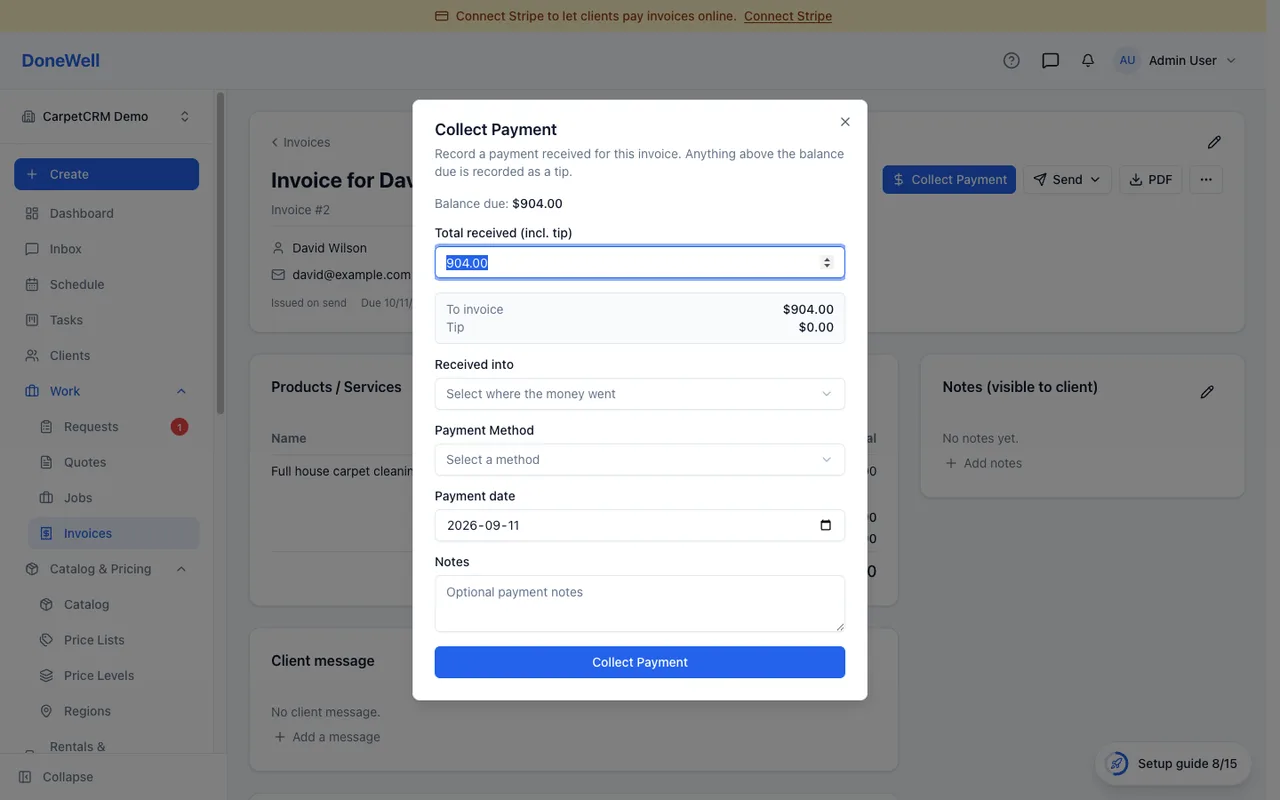
Collect payment
On an invoice with a balance, click Collect payment. Enter the total you received, choose the method (cash, cheque, e-transfer, card on your own terminal — the list is yours to edit under Settings → Payments), where the money went, and the date. A payment can cover part of the balance; the invoice shows Partial until it is settled.
Anything received above the balance due is recorded as a tip. The dialog shows the split as you type. Tips are kept apart from the invoice total, so they never count as revenue against the bill. When the tip comes out larger than the bill, the dialog asks you to confirm it before recording — a quick check against an extra zero typed by mistake. A tip above $10,000 is never accepted.
Receipts
A receipt goes to the client by email when a payment is recorded, if their address is on file. You can resend it from the payment page.
Wallets
Each payment method can be linked to a wallet — a cash box, a bank account — so the ledger under Finances shows where the money went. This is optional; skip it if you do your bookkeeping elsewhere.
Interac e-Transfer notifications
When your plan includes Interac e-Transfer and you forward the bank's "you received money" emails to DoneWell (switch on Settings → Payments → Interac e-Transfer, save your e-Transfer email, and follow its Bank notifications steps to get the forwarding address), each notification shows up under the e-Transfers tab in Payments. The tab's badge counts the transfers still waiting for you.
A transfer is recorded on its own only when two things are true: the email was genuinely sent by Interac, and its message names exactly one open invoice for an amount within that invoice's balance. Then the payment is posted, the invoice is marked paid or partial, the money lands in the wallet mapped to the e-transfer method, and your team is notified — nothing for you to do.
Everything else waits in the tab so a person decides:
- Post to … — the transfer matched an invoice but not with certainty (the sender's email was recognised, or the memo was unclear). Check the suggestion and confirm.
- Choose another invoice — pick the open invoice yourself; anything above that invoice's balance is recorded as a tip, as with a hand-recorded payment.
- Not our payment — a transfer that is not yours, a duplicate, or a cancellation. It asks for a short reason and is final.
- Re-analyze — for a notification DoneWell could not read; useful after you fix the forwarding.
A notification is never posted twice: once it is recorded or dismissed, it leaves the queue. Unverified emails — ones that could have been altered or did not come from Interac — are marked as such and always wait for a person.
Refunds and corrections
- Refund returns money to the client. Start it from the payment page; a card payment is refunded through Stripe, a hand-recorded one is recorded as returned. The invoice's balance goes back up by the refunded amount. When the payment included a tip, choose what you are returning: Both (bill first) — the bill first and the tip only past it, Bill, or Tip. Returning the tip leaves the invoice paid and takes the tip out of the technicians' pay; otherwise the dialog shows how much the invoice will owe again.
- Void cancels a payment that was recorded by mistake and never happened. It is for hand-recorded payments only — a card payment that did happen is refunded, not voided.
Refunds and a void appear on the payment's timeline with their dates. A payment recorded for an earlier day shows that date without a time. To find a cheque payment, search the payments list by its cheque number.
Payments already paid out to a technician's pay run stay as they were; a later refund is settled in the next pay run instead.
Missing something? Every guide is short on purpose — write to support@donewellapp.com and we will add it.